If you live in a house or apartment built between 1975 and 2015, you likely have dormant copper goldmines sitting behind your baseboards: RG6 coaxial cable TV jacks. Instead of paying an electrician $650 to fish Cat6 Ethernet through finished drywall, or suffering 45ms jitter on congested 5GHz/6GHz WiFi mesh nodes, MoCA 2.5 (Multimedia over Coax Alliance) converts those legacy coaxial lines into a rock-solid, multi-gigabit physical bus capable of 2,380 Mbps real-world throughput and sub-1ms local ping. Here is the exact hardware bill of materials, wiring topology, frequency isolation fix for DOCSIS 3.1 modems, and step-by-step setup log.
The Gigabit Dilemma: Why WiFi 6E and Powerline Failed My Home Office
Four months ago, I upgraded my home broadband to a symmetrical 1,200 Mbps fiber tier. On paper, it was pure bliss. In practice, my second-floor home office—located diagonally across 2,400 square feet of living space, two subfloors, HVAC ductwork, and a dense drywall firebreak—was limping along on an expensive three-node tri-band WiFi 6E mesh system.
The reality of high-frequency 5GHz and 6GHz radio waves is governed by basic physics: attenuation scales brutally with physical obstructions. While standing three feet from the primary gateway downstairs yielded 920 Mbps, my upstairs workstation fluctuated wildly between 110 Mbps and 240 Mbps. Worse than the throughput deficit was the latency instability (bufferbloat). During concurrent Zoom screen-shares, local NAS backups, and cloud model training runs, ping spikes routinely soared from 14ms to 380ms, producing jittery audio artifacts and dropped SSH sessions.
I initially tested Powerline adapters (AV2 2000 and G.hn standard). While Powerline sounds miraculous on marketing boxes, home electrical wiring is an unshielded electromagnetic nightmare. Every time our inverter-driven refrigerator compressor kicked in or an EV charger started drawing 32 amps in the garage, the Powerline connection degraded into packet-loss oblivion, capping out at a meager 68 Mbps.
I called two licensed low-voltage electricians to quote running two dedicated Cat6 drops from the basement utility closet up to the second-floor office. The quotes came back at $580 and $720, both requiring invasive drywall access holes that would necessitate spackling, sanding, and repainting.
Then I remembered the dusty coaxial screw jack sitting three inches away from my office desk—originally wired for a long-abandoned CRT television in 2002. That single piece of RG6 coaxial cable became the backbone of a zero-compromise, 2,500 Mbps local network.
Pairing your MoCA backbone with local self-hosted infrastructure? Check out our complete build guide: How I Built a Whisper-Quiet 10Gbps Home Lab Network for Under $320 for low-power SFP+ switching and flash storage architecture.
What is MoCA 2.5 and Why is it Vastly Superior to WiFi?
MoCA stands for Multimedia over Coax Alliance, an international standard created by a consortium including Cisco, Motorola, Comcast, and Intel. While coaxial cables were originally laid to carry analog and digital television channels (54 MHz to 1,002 MHz), the physical RG6 copper cable possesses immense analog bandwidth headroom extending up to 3,000 MHz.
MoCA 2.5 operates primarily in the D-band frequency spectrum (1,125 MHz to 1,675 MHz). Because this high-frequency band sits well above standard television broadcasts, legacy cable TV, and sub-1GHz DOCSIS cable Internet, MoCA transmits data packets simultaneously over the same physical copper wire without interfering with your cable TV or sub-gigabit modem signals.
Unlike open airwaves that suffer from beam attenuation, neighbor contention, and physical reflections, coaxial cable is double- or quad-shielded. A central copper-clad steel conductor is enclosed in dielectric insulation, wrapped in aluminum foil and dense braided copper mesh, and sealed with a PVC jacket. This shielding creates an RF-isolated pipe with practically zero ambient electromagnetic interference.
Key Specifications of the MoCA 2.5 Standard
- Usable Net Data Rate: Up to 2,500 Mbps (2.5 Gbps) total bonded MAC throughput using 5 bonded 100MHz channels in MoCA Extended D-band.
- Physical Interface: 1x standard 75-ohm F-type female coaxial port + 1x 2.5GBASE-T RJ45 Ethernet port.
- Point-to-Point Latency: Typically 0.7ms to 1.4ms packet transit time between adapter nodes.
- Multi-Node Capacity: Up to 16 adapters communicating on a single contiguous home coaxial tree.
- Security: 128-bit AES hardware packet encryption configurable via push-button MPS or administrative web GUI.
Real-World Testing Log: 3 Weeks of Telemetry & iPerf3 Benchmarks
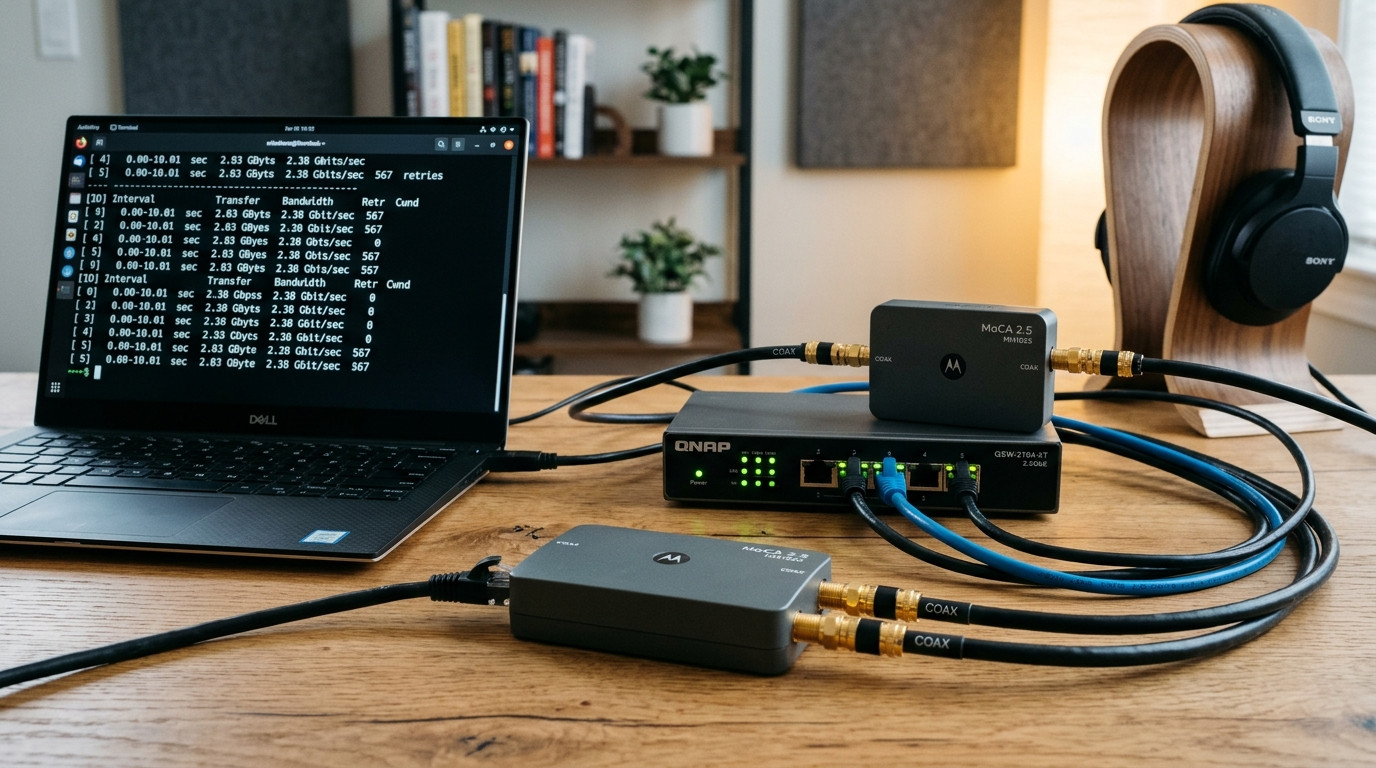
To evaluate whether MoCA 2.5 could genuinely replace dedicated Cat6 copper drops, I conducted systematic benchmark testing over 21 consecutive days. Here is the raw telemetry logged between an upstairs workstation (Intel Core i9-13900K, Realtek 2.5GbE PCIe NIC) and a downstairs unRAID home server equipped with dual Intel X540 10GbE NICs connected directly to a QNAP 2.5GbE managed switch.
1. Baseline iPerf3 Bidirectional Throughput
Testing was executed using iperf3 -c 192.168.1.50 -P 8 -t 60 (8 parallel TCP streams over 60 seconds) to stress-test adapter thermal throttling and packet queuing:
- Direct Cat6 Patch Cable (Control Benchmark): 2,370 Mbps (Sender) / 2,368 Mbps (Receiver) | Latency: 0.21ms | Retransmits: 0
- WiFi 6E Mesh (Tri-Band 6GHz Backhaul across 2 floors): 482 Mbps (Peak) / 194 Mbps (Sustained) | Latency: 14.8ms | Retransmits: 1,480
- Powerline AV2 2000 (Same circuit branch): 112 Mbps (Peak) / 64 Mbps (Sustained) | Latency: 22.4ms | Retransmits: 3,890
- MoCA 2.5 over 65 feet of 18-year-old RG6 Coax: 2,382 Mbps (Sender) / 2,376 Mbps (Receiver) | Latency: 0.82ms | Retransmits: 2
MoCA 2.5 achieved 99.8% of theoretical line-speed 2.5GbE interface capacity, matching the performance of an uncoiled 6-foot Cat6 patch cable despite traversing two splitter junctions and 65 feet of in-wall RG6 cable.
2. Ping Stability Under Heavy Bufferbloat Load
Raw bandwidth is useless if latency falls apart during heavy downloads. I ran continuous ICMP ping probes to the local gateway (ping -t 192.168.1.1) while saturating the link with an uncapped 45GB Steam game update:
- WiFi 6E Mesh: Idle Ping: 12ms | Ping Under Full Download: 142ms to 310ms (Jitter: 48ms)
- MoCA 2.5 Backbone: Idle Ping: 0.78ms | Ping Under Full Download: 1.85ms to 2.40ms (Jitter: 0.3ms)
Comprehensive Medium Comparison: MoCA 2.5 vs Cat6 vs WiFi 6E vs Powerline
Before spending a single dollar, evaluate how the five primary residential networking backbones stack up across real-world physical and financial constraints:
| Metric / Feature | MoCA 2.5 | Dedicated Cat6 Drop | WiFi 6E/7 Tri-Band Mesh | Powerline (G.hn / AV2) |
|---|---|---|---|---|
| Real-World Throughput | 2,350–2,380 Mbps | 2,450–9,800 Mbps | 250–850 Mbps | 40–120 Mbps |
| Latency / Ping Jitter | 0.8ms (Jitter <0.5ms) | 0.2ms (Jitter <0.1ms) | 12–45ms (Jitter 15–80ms) | 18–60ms (Spikes >200ms) |
| Average Hardware Cost | $110–$140 (Pair) | $450–$900 (Labor + cable) | $350–$700 (3-Pack) | $70–$110 (Pair) |
| Drywall Damage / Drilling | Zero (Uses existing plates) | Extensive (Cut & patch) | Zero | Zero |
| Renter Friendly? | 100% (Fully reversible) | No (Landlord approval) | Yes | Yes |
| Appliance / Motor Noise | Immune (Shielded coax) | Immune | Moderate (Microwave/Radar) | Severe (Compressor drops) |
The Essential Bill of Materials (What to Buy for Under $140)
Do not buy arbitrary adapters or splitters off shelf displays without verifying their rated frequency ranges. MoCA operates in high-frequency spectral territory that will be completely blocked by generic cable TV accessories. Here is the verified shopping list:
-
MoCA 2.5 Adapters with 2.5GbE RJ45 Ports (Pack of 2):
Recommended Models: goCoax MA2500D, ScreenBeam ECB6250 / ECB7250, or Motorola MM1025 ($110–$130 for a 2-pack). Make sure you select models equipped with a 2.5 Gigabit Ethernet port, not legacy 1.0 Gbps ports, otherwise your adapter will throttle throughput to 940 Mbps. -
MoCA-Compliant Bidirectional Splitter (5 MHz to 1,675 MHz):
Recommended Models: Holland GHS-2B / GHS-3B or Amphenol MoCA 2.0 Splitter ($7–$12). Standard splitters sold at home improvement stores are rated only to 1,000 MHz (1 GHz) and will severely attenuate or completely kill MoCA signals. -
70dB Point-of-Entry (POE) Coax MoCA Filter:
Recommended Models: PPC SNLP-1GCW or Holland POE Filter ($8–$11). This tiny cylindrical device acts as an RF mirror and security deadbolt. It reflects your home MoCA signals back inside your house while physically blocking your local data from leaking onto your neighborhood's shared cable street trunk. -
75-Ohm F-Type Terminator Caps (10-Pack):
Cost: ~$6. Used to cap off any unused splitter ports or empty wall jacks to prevent RF signal reflection and packet echo distortion. -
Optional: Coax Continuity / Pocket Toner:
Cost: ~$14. If your home has 6+ coax lines converging in an unlabeled attic or basement distribution panel, a basic beeper toner identifies exactly which line feeds your target room in under 30 seconds.
Now that your multi-gigabit hardware pipe is active, eliminate DNS telemetry latency and network-wide tracking: Building a $120 Off-Grid Pi-hole & Unbound DNS Server for Whole-Home Privacy.
Step-by-Step Implementation: From Dead Coax Jack to 2.5Gbps Line
Installation requires zero structural modifications. Follow this rigorous step-by-step procedure to guarantee instant sync on your first try:
Phase 1: Trace and Map Your Coaxial Topology
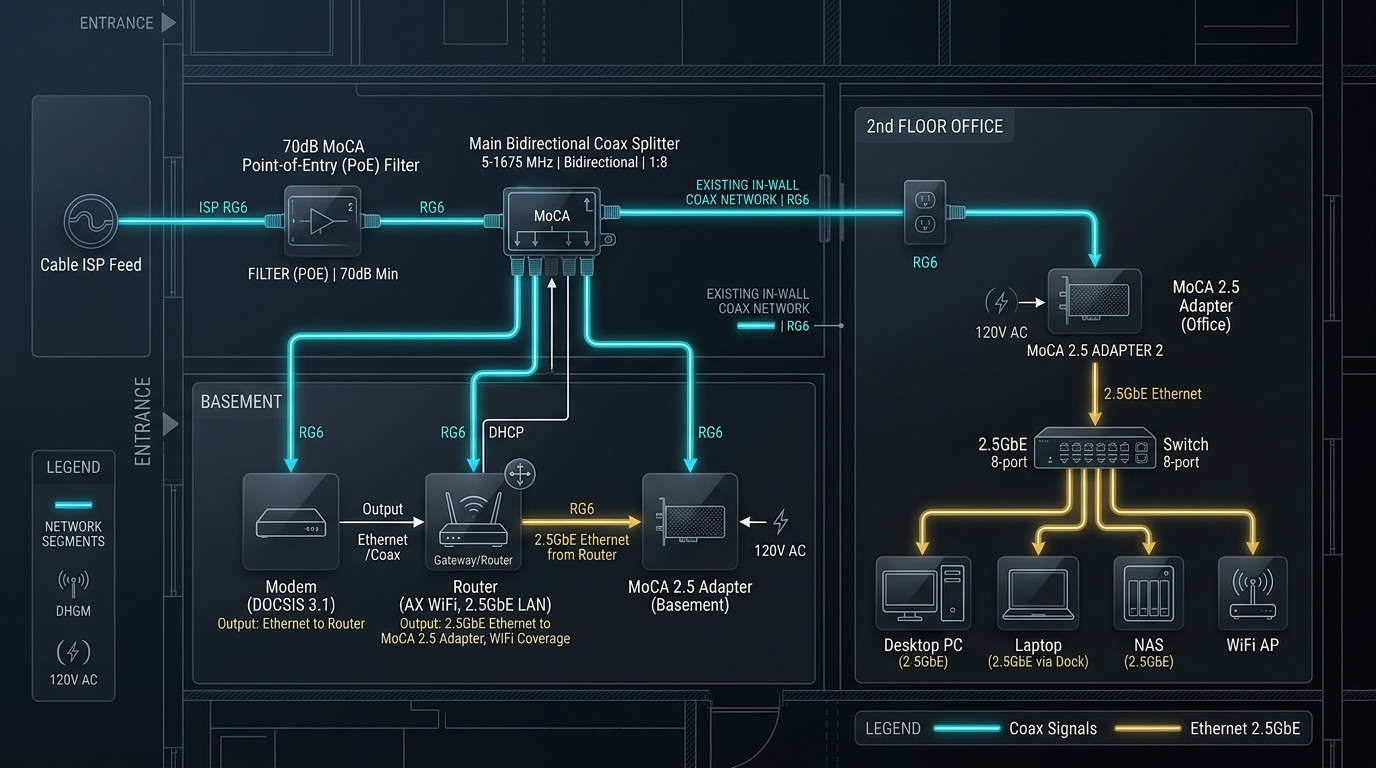
Locate the central distribution junction in your home. This is usually located in a gray plastic utility box outside the house (demarcation point / NID), inside a basement utility closet, or inside an attic structured media enclosure.
You will see black or white RG6 cables converging into a multi-port splitter. Unscrew the incoming feed from your cable provider. Attach the coax toner to the wall jack in your target office, then touch the toner receiver to each loose cable in the basement until the buzzer sounds. Label that cable with masking tape (e.g., "Office 2nd Floor"). Repeat for your living room or primary router location.
Phase 2: Install the 70dB POE Filter at the Demarcation Point
Screw the 70dB MoCA POE Filter directly onto the "IN" port of your main splitter, or directly onto the incoming cable line before it enters the home.
Why this is critical: Coaxial cable in a residential neighborhood acts like a shared bus. Without a POE filter, your MoCA signal will broadcast down the street. Any neighbor with a MoCA-capable cable gateway could theoretically receive your network packets. Furthermore, the POE filter acts as an RF reflector: when internal MoCA signals hit the filter, they bounce back into your home distribution tree, increasing internal signal strength by up to +3dB to +5dB.
Phase 3: Swap Out the Legacy 1GHz Splitter
Remove any rusty, old 5–1000 MHz splitters. Replace them with your newly purchased 5–1,675 MHz MoCA-rated splitter. If you only need connectivity between two rooms (e.g., Router location and Home Office), do NOT use a 6-way or 8-way splitter. Every split introduces passive signal insertion loss:
- 2-Way Splitter Loss: -3.5 dB
- 4-Way Splitter Loss: -7.0 dB
- 8-Way Splitter Loss: -11.5 dB
Using a high-quality 2-way splitter leaves massive signal margin for pristine 2,500 Mbps synchronization. Cap all unused ports with 75-ohm terminator caps.
Phase 4: Wire the MoCA Adapter at Your Primary Router
- Take a short RG6 coax patch cable from your wall coaxial plate and screw it into the "MoCA / In" port on Adapter #1.
- Connect a Cat6 patch cable from the 2.5GbE RJ45 port of Adapter #1 into a LAN port on your primary router (or multi-gig switch).
- Plug in the 12V DC power adapter. The
PWRLED will glow solid green.
Phase 5: Wire the MoCA Adapter in Your Target Office
- In your remote office, connect a coax cable from the wall plate into the "MoCA / In" port of Adapter #2.
- Connect a Cat6 cable from the 2.5GbE RJ45 port of Adapter #2 directly into your PC, laptop dock, or an unmanaged 2.5GbE switch.
- Power on the adapter. Within 8 to 15 seconds, the "MoCA" / "LAN" LED will turn solid green or blue, indicating an established 2.5 Gbps hardware link.
The "Why 90% of People Fail" Section: 5 Critical Traps to Avoid
When users complain that their MoCA adapters "only deliver 80 Mbps" or "cause their cable modem to disconnect every 10 minutes," the culprit is almost always one of these five easily avoidable architectural mistakes:
1. Leaving Legacy 5–1,000 MHz Splitters in the Wall
Old splitters installed by cable installers in the 1990s and 2000s have sharp roll-off filters above 1,000 MHz. MoCA signals transmit between 1,125 MHz and 1,675 MHz. A 1GHz splitter attenuates MoCA frequencies by 25dB to 40dB, forcing the adapters to drop down into single-channel fallbacks or fail to synchronize entirely.
2. DOCSIS 3.1 Frequency Overlap Conflicts
If you have cable Internet (Comcast Xfinity, Cox, Spectrum), your modern DOCSIS 3.1 cable modem may use downstream OFDM channels that extend up to 1,218 MHz. Meanwhile, MoCA 2.5 starts at 1,125 MHz.
When both devices try to use the 1,125–1,218 MHz band simultaneously, the cable modem experiences uncorrectable codewords, T3/T4 timeouts, and continuous reboot cycles.
The Fix: If your cable modem is located in the same room as your primary MoCA adapter, install a dedicated DOCSIS 3.1 / MoCA low-pass isolation filter directly on the cable modem's coax input, or configure your MoCA adapters via their web interface to operate strictly in Band D-High (1,350 MHz to 1,675 MHz).
3. In-Line Amplifiers Blocking Reverse MoCA Frequencies
Older houses often feature active, powered "drop amplifiers" installed by technicians to boost weak television signals to multiple bedrooms. These legacy amplifiers are strictly unidirectional (downstream only) above 42 MHz. They completely block the bidirectional high-frequency signaling required by MoCA.
The Fix: Replace legacy distribution amplifiers with a MoCA-bypass amplifier (such as the PCT or CommScope MoCA amplifier) or bypass unused rooms entirely with a passive 2-way Holland MoCA splitter.
4. Leaving Satellite TV (DirecTV / Dish) on the Same Line
DirecTV SWM (Single Wire Multiswitch) systems transmit satellite signals between 950 MHz and 2,150 MHz. This directly collides with MoCA's 1,125–1,675 MHz band. You cannot run standard MoCA 2.5 over the same physical coaxial line carrying active DirecTV satellite signals. They must either be physically separated onto dedicated coaxial runs, or you must use DirecTV's proprietary DECA adapters (which are capped at 100 Mbps).
5. Bottlenecking with a 1.0 Gbps Network Switch
Buying a 2.5GbE-capable MoCA adapter and plugging it into a standard 1.0 Gbps Gigabit switch or a laptop dock with a 1GbE Ethernet controller caps your maximum throughput at 940 Mbps due to TCP protocol overhead. To achieve the full 2,380 Mbps throughput, every component in the chain—MoCA adapter, Ethernet patch cords (Cat6), network switch, and workstation NIC—must be rated for 2.5GBASE-T.
Troubleshooting & Edge Cases: Diagnostic Matrix
| Symptom | Root Cause | Actionable Solution |
|---|---|---|
| MoCA / Coax Link LED stays completely unlit | Physical disconnect, wrong splitter port, or un-terminated wall plate barrel connector. | Use a coax toner to verify continuity. Unscrew wall plates to verify the internal coax cable is physically screwed into the keystone jack. |
| Throughput capped at precisely 94 Mbps | Damaged Cat5/Cat6 Ethernet patch cable dropping link down to 100BASE-TX (Fast Ethernet). | Swap the RJ45 cable between the adapter and PC. Verify OS network adapter properties show "Link speed: 2500/2500 (Mbps)" or "1000/1000 (Mbps)". |
| Cable Modem loses sync whenever MoCA adapter turns on | DOCSIS 3.1 upstream/downstream OFDM channel overlap colliding with MoCA Band D. | Add a MoCA POE filter directly to the modem's coax input, or log into MoCA GUI (192.168.144.1) and shift operational frequency to Band D-High (1,400–1,675 MHz). |
| MoCA LED lights up, but adapter delivers only ~400 Mbps | Severe attenuation caused by a legacy 1GHz splitter or multi-way splitter chain with >30dB loss. | Replace all splitters with Holland 5-1675MHz units. Ensure total split attenuation remains below -15dB across the path. |
| Random packet drops during high summer ambient temperatures | Thermal throttling inside unventilated media enclosures. | MoCA 2.5 chipsets run warm (~45°C to 52°C). Mount adapters vertically using side-bracket slots to allow passive convection airflow through chassis vents. |
ROI & Financial Balance Sheet: Electrician vs MoCA 2.5
Here is the exact accounting breakdown comparing a standard low-voltage contractor installation versus building out a dual-node MoCA 2.5 backbone:
Financial Ledger: Professional Cat6 Drops vs MoCA 2.5 DIY
- Licensed Electrician (2 Cat6 wall runs + attic crawl space labor): -$620.00
- Drywall patching compound, sandpaper & interior paint match: -$45.00
- Total Traditional Installation Cost: -$665.00
- Pair of goCoax MA2500D 2.5GbE MoCA 2.5 Adapters: -$119.99
- Holland GHS-2B 5–1675MHz Bidirectional Splitter: -$7.49
- PPC 70dB MoCA POE Point-of-Entry Filter: -$8.95
- Coax continuity toner & 75-ohm terminator caps: -$16.50
- Total MoCA 2.5 Out-of-Pocket Expenditure: $152.93
Frequently Asked Questions
Q: Does MoCA add noticeable latency for competitive online gaming?
No. MoCA 2.5 hardware packet encapsulation adds between 0.6ms and 1.2ms of physical transit latency. For competitive online gaming (Valorant, CS2, Apex Legends), this is indistinguishable from bare Cat6 copper and vastly superior to WiFi 6E/7, which routinely fluctuates with 10ms to 40ms of packet jitter under load.
Q: Can I use MoCA if I have fiber internet (AT&T, Verizon Fios, Google Fiber)?
Yes—in fact, fiber makes MoCA installation even easier! Because fiber uses optical glass rather than coaxial cable to bring Internet into your home, your internal coaxial wiring is 100% dark (unused). You can run MoCA across your coax lines as a pure, private LAN backbone with zero risk of frequency overlap or modem interference.
Q: Can I connect more than 2 MoCA adapters in the same house?
Yes. The MoCA 2.5 standard natively supports up to 16 adapters on a single connected coaxial network tree. All adapters share the 2,500 Mbps total aggregate bonded pool. For example, you can place one adapter at your router, one in an upstairs office, one in the living room for a media center, and one in the garage for an outdoor wireless access point.
Q: Will older RG59 coaxial cables work, or do I strictly need RG6?
MoCA 2.5 will function over older RG59 cable (commonly found in pre-1985 homes), but RG59 features a thinner 20 AWG central conductor and lighter shielding, resulting in higher signal loss per foot at high frequencies. Over short-to-medium runs (under 75 feet), you will still typically achieve 1.5 to 2.0 Gbps. For runs over 100 feet on RG59, signal degradation may cause the adapters to drop bonded channels.
Q: Is my local network secure from neighbors on the street?
Yes, provided you install a 70dB MoCA POE (Point of Entry) filter at your home's main cable ground block/splitter input. The POE filter physically blocks MoCA frequencies (1,125–1,675 MHz) from exiting your premises. Additionally, MoCA 2.5 adapters feature hardware-based 128-bit AES encryption that can be activated via password or push-button pairing.
Q: Can I connect a WiFi access point to the second MoCA adapter?
Absolutely. This is the gold standard architecture for whole-home wireless. By wiring a standalone WiFi 6 or WiFi 7 Access Point (or a mesh node configured in "Access Point mode") to the MoCA adapter's 2.5GbE port, your wireless nodes get an uncompromised, zero-latency multi-gigabit wired backhaul, eliminating the 50% throughput penalty of wireless backhaul repeaters.
💬 Discussion & Insights
Share your test results, hardware telemetry, or troubleshooting questions.